Invoices
Navigation: Sidebar → Invoices
The Invoices page tracks all invoices synced from your accounting system (Xero) and from SuperOps. Monitor payment status, amounts outstanding, and overdue invoices.
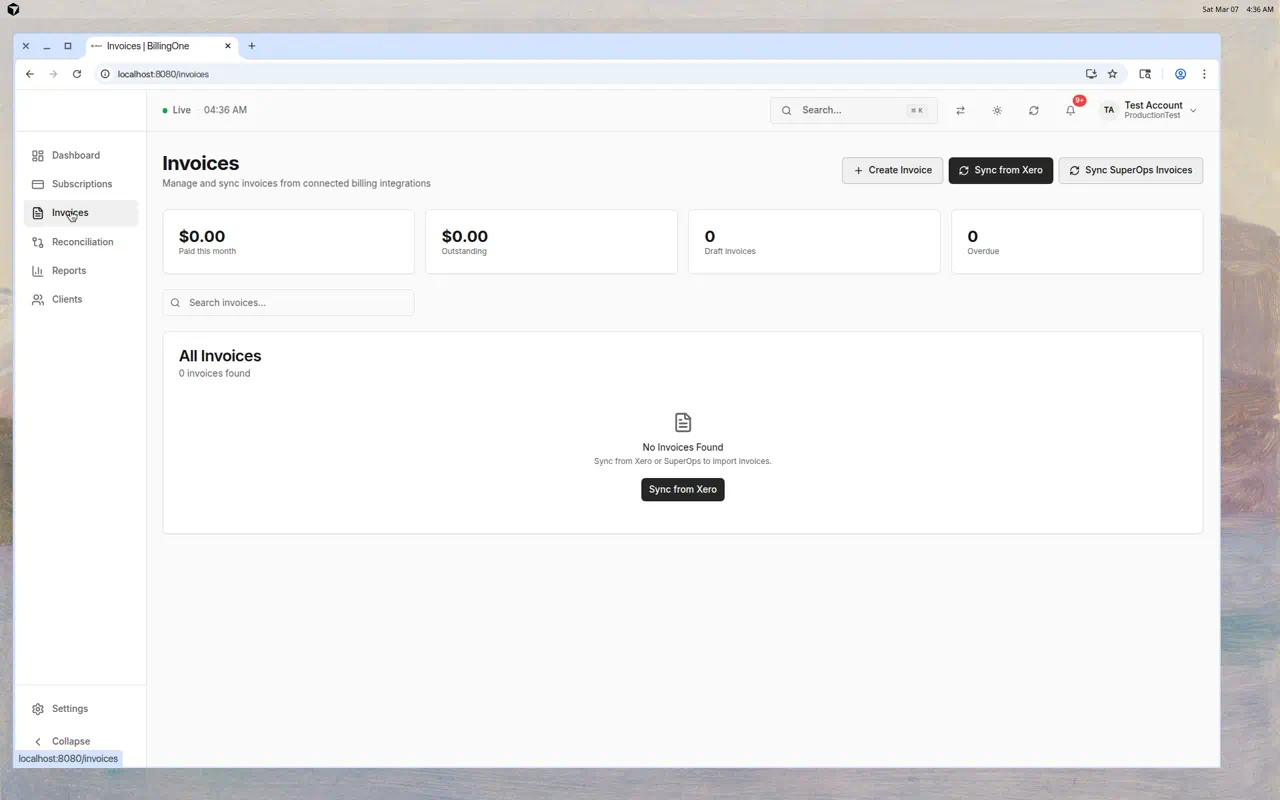
Summary Cards
Four cards at the top show key invoice metrics:
| Card | Description |
|---|---|
| Paid This Month | Total amount received this month |
| Outstanding | Total amount currently owed to you |
| Draft Invoices | Invoices not yet sent to clients |
| Overdue | Number of invoices past their due date |
Invoice List
The table shows all invoices with:
| Column | Description |
|---|---|
| Invoice Number | Reference number from Xero/SuperOps |
| Client | Which client the invoice is for |
| Amount | Invoice total |
| Status | Draft, Submitted, Paid, Overdue |
| Due Date | When payment is expected |
| External Link | Click to open the invoice in Xero |
Invoice Statuses
| Status | Meaning |
|---|---|
| Draft | Invoice created but not yet sent |
| Submitted | Sent to the client, awaiting payment |
| Paid | Payment received |
| Overdue | Past the due date without payment |
Syncing Invoices
From Xero
Click Sync from Xero to pull the latest invoices from your Xero account.
From SuperOps
Click Sync SuperOps Invoices to pull invoices from SuperOps (if connected).
Creating an Invoice
Click + Create Invoice to create a new invoice manually.
Searching
Use the search bar to filter invoices by:
- Invoice number
- Client name
- Amount
Tips
- Sync Xero weekly — Keep your invoice data current
- Watch the "Overdue" count — Follow up on overdue invoices promptly
- Check "Outstanding" amounts — This is your total accounts receivable
- Use external links — Click through to Xero for full invoice management (editing, sending, payments)