Backups
The Backups page shows the status of your data backups. Your IT provider sets up backups to protect your important files, emails, and data — this page lets you see if everything is running smoothly.
What You'll See
Each backup entry shows:
- Backup type — What's being backed up (email, files, etc.)
- Status — Whether the backup is healthy, at risk, or has failed
- Last backup time — When the most recent backup ran
- Data size — How much data is being backed up
Understanding Backup Status
| Status | What It Means |
|---|---|
| ✅ Healthy | Backups are running on schedule and completing successfully |
| ⚠️ At Risk | The backup completed with warnings or hasn't run recently |
| ❌ Failed | The backup didn't complete — your IT provider should investigate |
What Gets Backed Up?
Your IT provider configures what gets backed up. Common items include:
- Email — Your mailbox, contacts, and calendar
- Files — Documents stored in OneDrive or SharePoint
- Teams — Microsoft Teams conversations and files
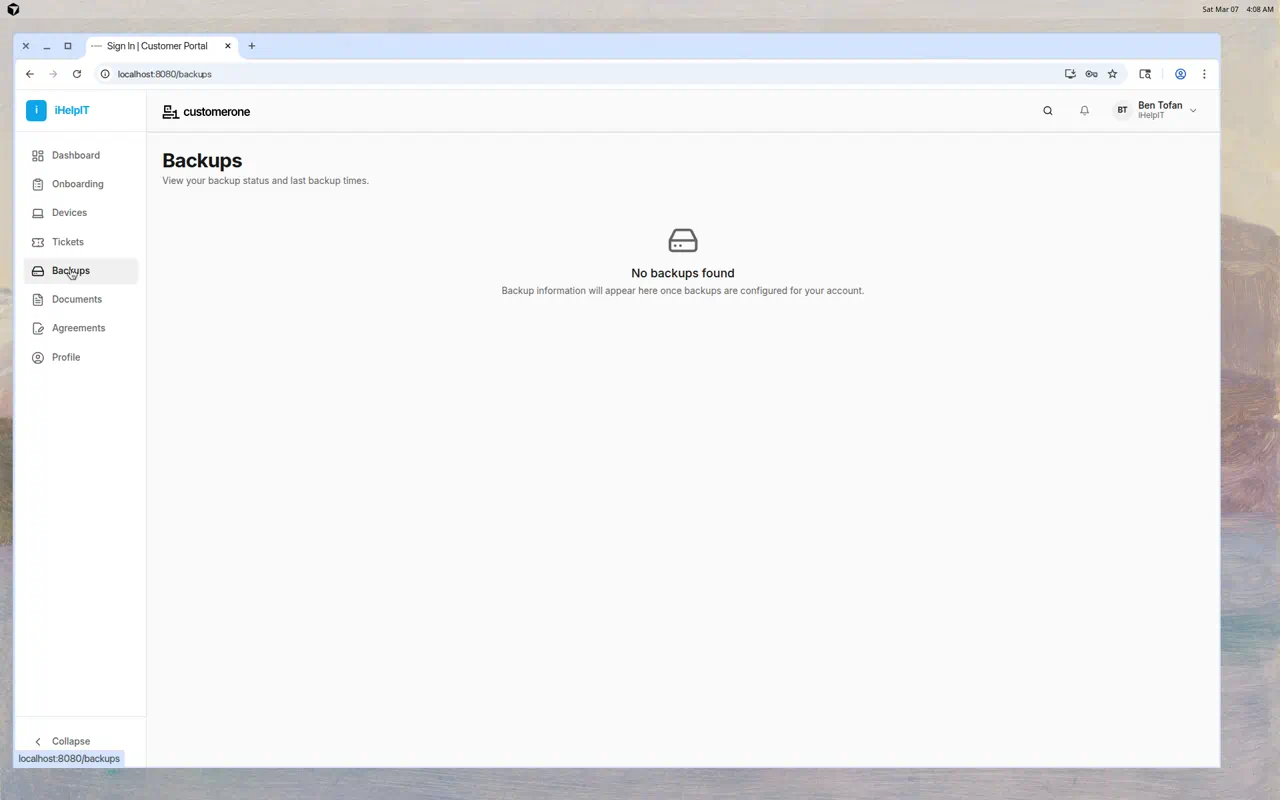
If You See "No Backups Found"
This means either:
- Backups haven't been configured for your account yet
- Your IT provider uses a different backup system that isn't shown here
Contact your IT provider if you're concerned about your backup coverage.
Common Questions
Can I restore a file from backup?
Yes, but you'll need to contact your IT provider. They can restore specific files, emails, or other data from your backups.
How often are backups taken?
This depends on your service plan. Most backups run daily, but some may run more frequently. Ask your IT provider for details.
What if a backup shows as "Failed"?
Don't panic — your IT provider is likely already aware and working on it. If you're concerned, submit a support ticket to ask about it.
Tips
- Check this page occasionally — It's good to know your data is being protected
- Contact your IT provider if you see persistent failures
- Ask about backup coverage if you have important data that might not be included