Getting Started with PanelOne
This guide walks you through signing in to PanelOne for the first time, completing the onboarding wizard, and learning the basics of navigating the platform.
What is PanelOne?
PanelOne is a unified MSP operations dashboard. It consolidates data from your RMM, security, backup, cloud, phone, and network tools into a single interface. Instead of jumping between NinjaOne, SentinelOne, Dropsuite, 3CX, Microsoft 365, and UniFi dashboards, you see everything in one place.
PanelOne is part of the PartnerOne suite alongside BillingOne (finance) and ClientOne (customer portal). See the suite overview.
PanelOne Mobile
Use PanelOne Mobile on iPhone, iPad, or Android for alert triage, device checks, ticket updates, and client lookups in the field. Same sign-in as the web app.
→ PanelOne Mobile getting started
Signing In
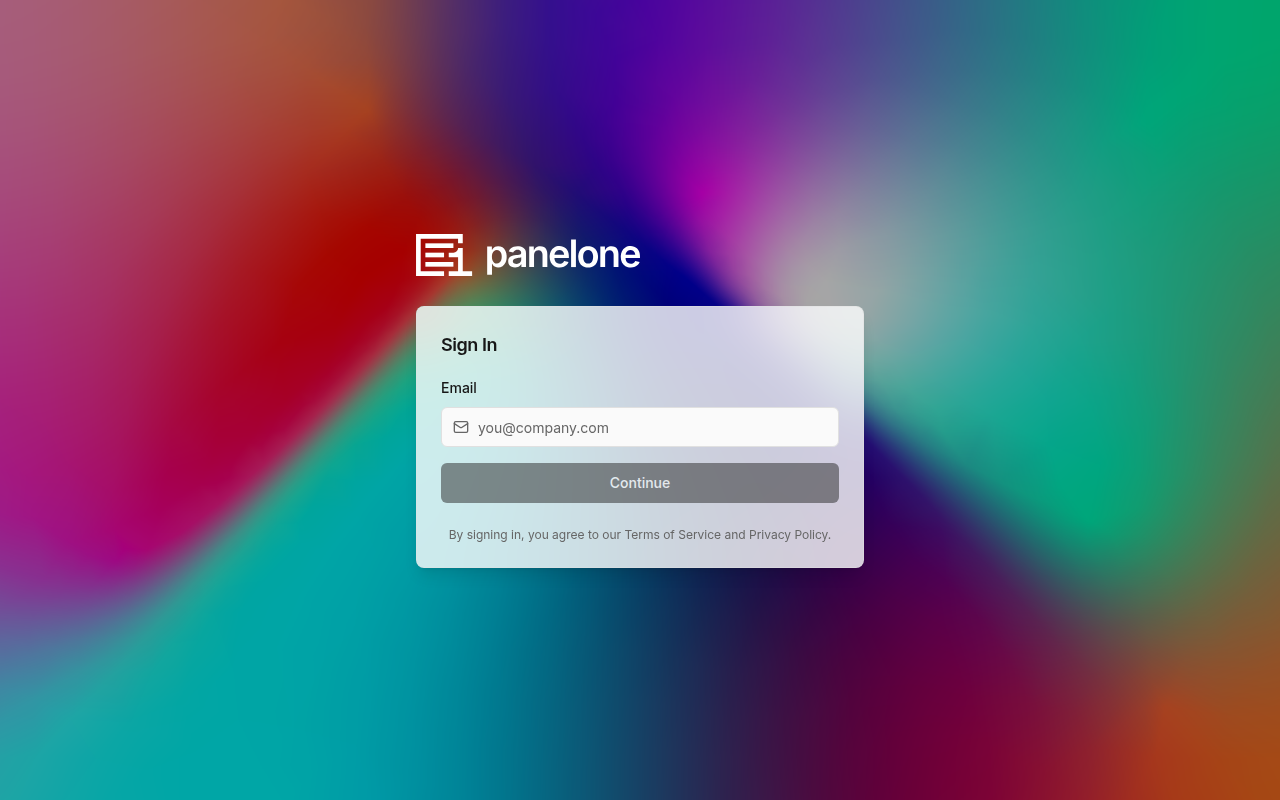
Staff sign in through PartnerOne sign-in (IdentityOne) at login.partnerone.dev. There is no separate password inside PanelOne. Full walkthrough: Sign in and set up MFA.
- Open
app.panelone.dev(or your custom domain). You are sent to PartnerOne sign-in atlogin.partnerone.dev. - Enter your email address.
- Enter your password, or continue with Microsoft if your organisation has set up Entra SSO.
- Complete a second factor. You must set up and use a second factor to access PartnerOne apps — your organisation can't switch MFA off. A password sign-in can succeed and then send you to enrol or challenge you.
- On first sign-in, set up an authenticator app (TOTP) and save your recovery codes (they are always shown after enrolment). PanelOne requires an authenticator-app code — passkey-only staff are refused and told to enrol one. See Passkeys.
- You return to PanelOne automatically. Suite apps do not show a consent screen.
Note: PanelOne does not have a self-registration flow. Your MSP admin must create your account or send you an invite — see Invite people and set app permissions.
See Set up Microsoft Entra SSO if your organisation uses Entra.
Session Timeout
PanelOne includes an automatic session timeout for security. When your session is about to expire, you'll see a warning dialog giving you the option to extend the session or sign out.
First-Time Onboarding Wizard
When you sign in for the first time (or if your account has no organization), PanelOne walks you through a multi-step onboarding wizard:
Step 1: Create Your Organization
- Enter your Organization Name (e.g., "Acme IT Services")
- A URL Slug is auto-generated from the name (e.g.,
acme-it). You can customize this. - Click Continue
Step 2: Select Your Tools
Choose which integrations your MSP uses. This tells PanelOne which features to highlight:
- NinjaOne — RMM & device management
- SentinelOne — Endpoint security
- Dropsuite — Backup & recovery
- 3CX — Phone system
- Checkpoint — Network security
- Microsoft 365 — Cloud productivity
Don't worry if you're not ready to connect everything — you can always configure integrations later in Settings → Integrations.
Step 3: Security configuration
You must set up and use a second factor to access PartnerOne apps — your organisation can't switch MFA off. If you have not enrolled yet, PartnerOne sign-in walks you through an authenticator app before you can use the apps, then shows recovery codes to save. PanelOne requires that authenticator — a passkey is not enough here.
Step 4: Review Profile
- Confirm your name, email, and role (Organization Owner)
- Click Continue
Step 5: Complete Setup
- Review a summary of everything you've configured
- Click Go to Dashboard to enter PanelOne
Navigating the Interface
Sidebar Navigation
The left sidebar is your primary navigation. It contains links to every major section:
| Icon | Label | Path |
|---|---|---|
| 📊 | Dashboard | / |
| 🏢 | Clients | /clients |
| 🔑 | Licensing | /licensing |
| 🖥️ | Devices | /devices |
| 👥 | Users | /users |
| 🛡️ | Security | /security |
| 💾 | Backups | /backups |
| 📞 | 3CX Phone | /phone |
| ☁️ | Microsoft 365 | /m365 |
| 📡 | Network | /network |
| 🔔 | Alerts | /alerts |
| 🎫 | Tickets | /tickets |
| 📈 | Reports | /reports |
| 📄 | Documents | /documents |
| 🎯 | SLA | /sla |
| ⚙️ | Settings | /settings |
| 🌐 | ClientOne Admin | /clientone-admin (owners/admins only); legacy /portal-admin redirects |
The sidebar can be collapsed to a narrow icon-only view by clicking the collapse arrow, giving you more screen space.
Header Bar
The header contains:
- Client Selector — Filter the entire dashboard to show data for a specific client. When a client is selected, all pages automatically scope to that client's data. The "Clients" sidebar link is hidden when a client is selected.
- Search — Quick search across the platform
- Notifications — View recent notifications
- User Menu — Access your profile, settings, and sign out
Cross-App Navigation
PanelOne and BillingOne share the same organization and the same PartnerOne sign-in. PartnerOne Admin has an app switcher; other products may add their own launcher. See App switcher.
Both apps send you to login.partnerone.dev when you need to sign in. After you finish, you return to the app automatically — suite apps do not show a consent screen. If you are asked to sign in again, use the same PartnerOne sign-in (email, then password or Microsoft, then an authenticator-app code).
See BillingOne for details.
Roles and Permissions
PanelOne uses role-based access control. Your role determines what you can see and do:
| Role | Description |
|---|---|
| Owner | Full access to everything, including organization settings and billing |
| Admin | Full access except ownership transfer and some org-level settings |
| Engineer | Access to operational pages (devices, security, tickets, etc.) |
| Viewer | Read-only access to all operational pages |
| Finance | Access to billing and reporting features |
Engineer and Finance are only set in PanelOne. IdentityOne permission only controls whether you can open PanelOne at all; the first sign-in seeds Owner, Admin, or Viewer, then this team role wins. See Invite people and set app permissions and Settings → Team.
Next Steps
- Configure Integrations — Connect your tools to start pulling data
- Add Clients — Import or create your client list
- Explore the Dashboard — See your unified operations view