Licensing
Navigation: Sidebar → Licensing
The Licensing page manages all your Pax8 subscriptions and license quantities. View subscriptions grouped by client, track active/cancelled/suspended status, filter by vendor and expiry, edit quantities, and manage Pax8 company mappings.
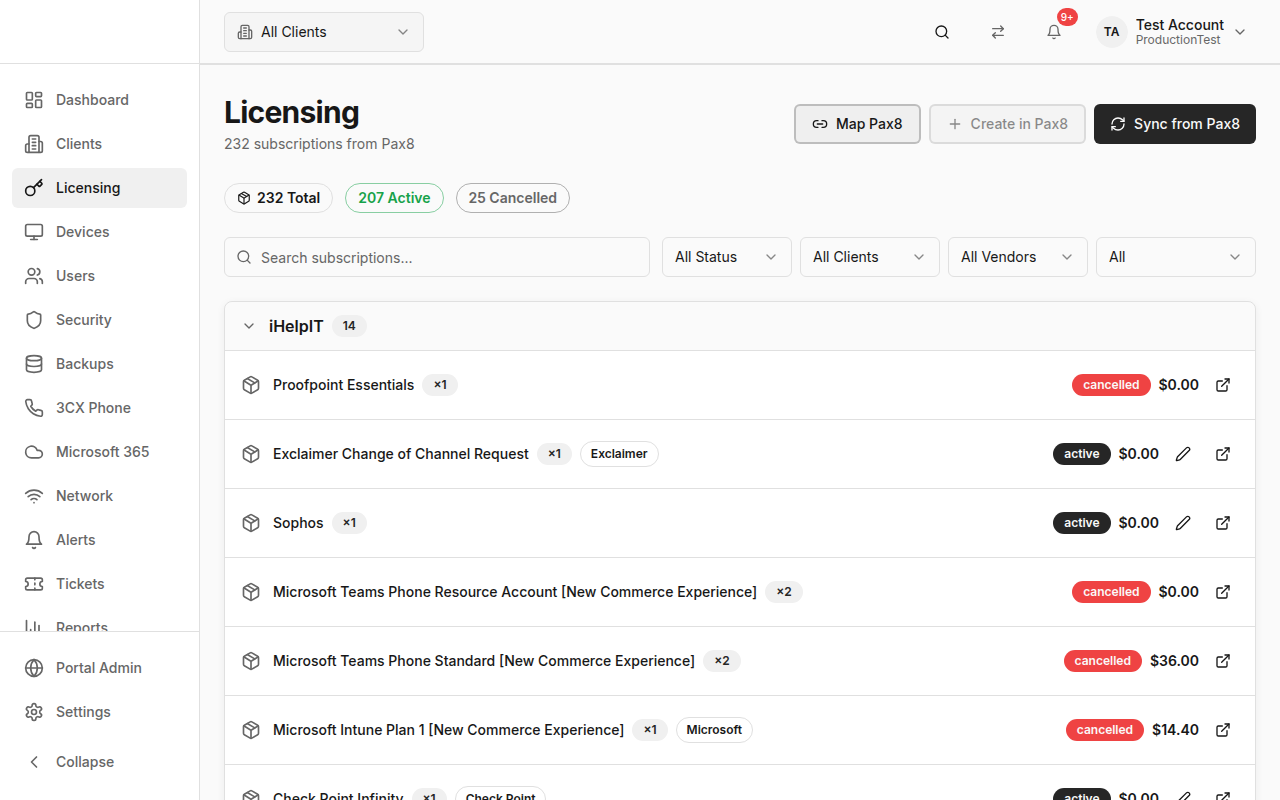
Overview
The Licensing page shows:
- Stats Badges — Total subscriptions, active, cancelled, suspended counts
- Filters — Search, status, client, vendor, expiry date
- Grouped List — Subscriptions organized by client in collapsible groups
- Actions — Edit quantities, sync from Pax8, map companies, create companies
How Subscription Data Gets Here
License/subscription data syncs from Pax8, a cloud marketplace for IT services:
Prerequisites:
- Enable the Pax8 integration in Settings → Integrations
- Configure Pax8 API credentials
- Map Pax8 companies to PanelOne clients
Stats Badges
| Badge | Color | Meaning |
|---|---|---|
| Total | Default | All subscriptions matching current filters |
| Active | Green | Currently active subscriptions |
| Cancelled | Gray | Cancelled subscriptions |
| Suspended | Gray | Temporarily suspended subscriptions |
Subscription List
Subscriptions are grouped by client in collapsible sections. Each subscription shows:
- Product name — Pax8 product/SKU name
- Vendor — Software vendor (Microsoft, Adobe, etc.)
- Quantity — Number of licenses
- Price — Monthly or annual cost
- Status — Active, cancelled, suspended
- Start/end dates — Subscription period
- Edit button — Change license quantity
Filtering
Search
Type to filter by client name, product name, or Pax8 subscription ID.
Status Filter
- All, Active, Cancelled, Suspended
Client Filter
- All Clients, specific client, or "Unmapped" (subscriptions not linked to a client)
Vendor Filter
- All vendors, or select a specific vendor (Microsoft, Adobe, etc.)
Expiry Filter
- All, Expiring in 30 days, Expiring in 90 days, Expired, No end date
Editing License Quantities
- Click the edit button on any subscription
- The Edit Subscription Quantity dialog opens
- Enter the new quantity
- Click Save
- PanelOne updates the quantity in Pax8
Note: Requires the
billing.subscriptions.managepermission.
Sync from Pax8
Click Sync from Pax8 to pull the latest subscription data:
- Click the sync button in the header
- Wait for the sync to complete
- The subscription list refreshes with current data
Mapping Pax8 Companies to Clients
Pax8 companies need to be mapped to PanelOne clients for subscriptions to appear under the correct client.
Using the Map Pax8 Dialog
- Click Map Pax8 in the header
- The mapping dialog shows:
- Your PanelOne clients on one side
- Available Pax8 companies on the other
- Match each Pax8 company to its PanelOne client
- Click Save
Creating a Company in Pax8
If a client doesn't have a Pax8 company yet:
- Click the Create in Pax8 dropdown
- Select the PanelOne client (only clients without a Pax8 mapping are shown)
- Enter or confirm the company name
- Click Create & Link
- PanelOne creates the company in Pax8 and links it to the client
Note: After creation, you'll need to add contacts in the Pax8 portal to activate the company before adding subscriptions.
Permission Gate
Certain actions require the billing.subscriptions.manage permission:
- Editing subscription quantities
- Syncing from Pax8
- Mapping companies
- Creating companies
If you don't have this permission, these buttons won't appear.
Tips & Best Practices
- Map all Pax8 companies immediately after connecting — Unmapped subscriptions show as "Unmapped"
- Use the expiry filter to catch subscriptions about to expire — Contact clients before renewals
- Monitor "Unmapped" subscriptions — These indicate Pax8 companies that haven't been linked to clients
- Sync regularly — Run a sync after making changes in the Pax8 portal
- Use licensing data for billing reconciliation — Cross-reference with BillingOne's reconciliation feature
Related Guides
- Clients — Map Pax8 company IDs to clients
- BillingOne — Full billing dashboard with subscription management
- Settings → Integrations — Configure Pax8 connection