Settings
Navigation: Sidebar → Settings
The Settings area contains configuration pages for managing your PanelOne organization. From personal profile settings to integration connections and team management, most staff-facing options are here. ClientOne Admin (sidebar) is where you enable ClientOne per client, manage client users, onboarding, and MSP-wide ClientOne SSO and ticket-field options.
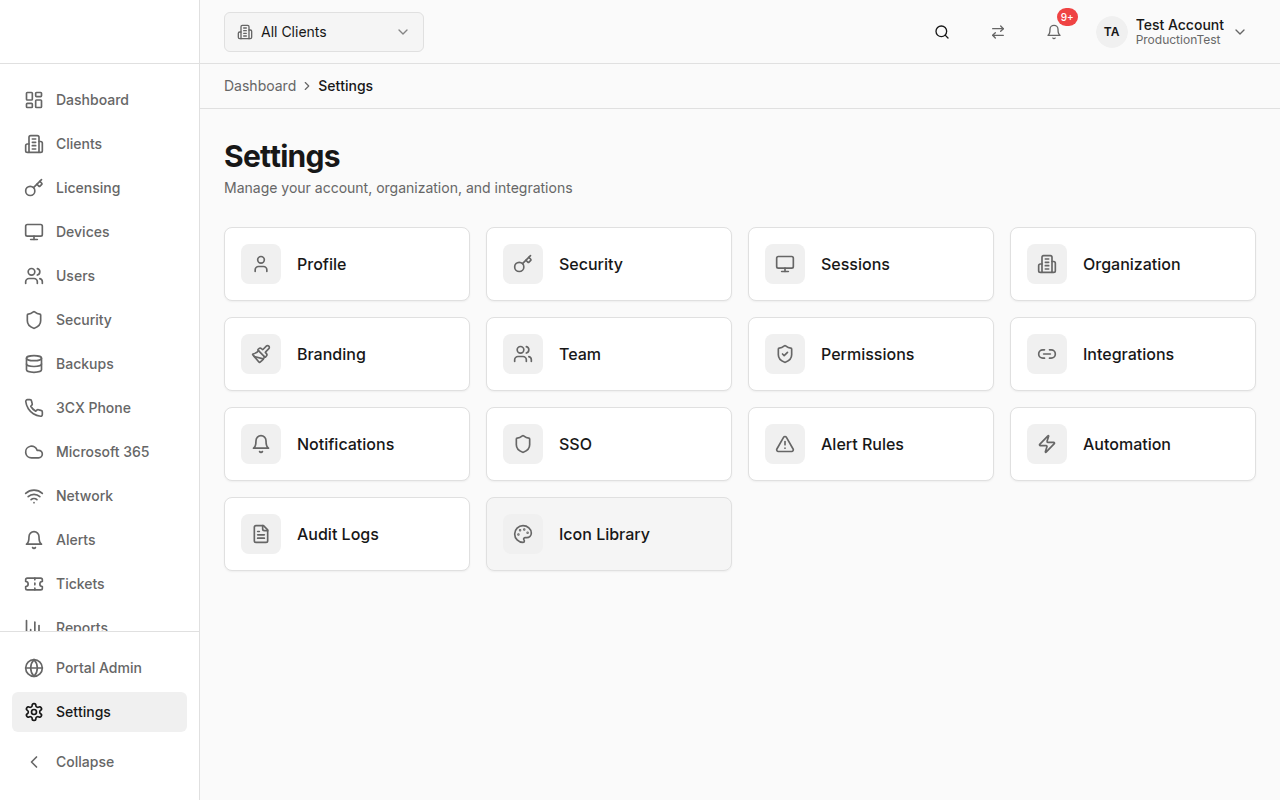
Settings Overview
Navigation: Settings → Overview (default landing)
A grid of all settings categories with icons. Click any card to navigate to that settings page.
Profile
Navigation: Settings → Profile
Manage your personal account information:
- Full Name — Update your display name
- Email — Your sign-in email
- Avatar — Upload a profile picture
- Timezone and locale preferences
Security
Navigation: Settings → Security
Staff sign-in security is managed through PartnerOne sign-in (login.partnerone.dev), not a separate PanelOne password.
Multi-Factor Authentication (MFA)
You must set up and use a second factor to access PartnerOne apps. Your organisation can't switch MFA off.
If you have not enrolled, PartnerOne sign-in takes you through an authenticator app before you can open PanelOne, BillingOne, or Admin. Recovery codes are always shown after enrolment — save them. See Sign in and set up MFA.
By default, Entra SSO does not replace PartnerOne MFA. After Microsoft sign-in you still complete a second factor.
Passkeys / Security Keys
Register a passkey from PartnerOne Admin — see Passkeys. A passkey works as the second factor on PartnerOne Admin and the login site only. PanelOne and BillingOne require an authenticator-app code.
Recovery Codes
Recovery codes are always issued after MFA enrolment. Each code can only be used once. To reset MFA, see Recover access with a recovery code.
Sessions
Navigation: Settings → Sessions
View and manage active sessions:
- Current session — Highlighted with "Current" badge
- Other sessions — Devices and browsers with active sessions
- Terminate — End any session you don't recognize
- Session details include: browser, OS, IP address, last active time
Organization
Navigation: Settings → Organization
Manage organization-level settings:
- Organization Name — Your MSP's display name
- URL Slug — Used in your PanelOne URL
- Organization ID — Reference identifier
MFA is already required for every staff sign-in through PartnerOne sign-in. There is no organization toggle to turn it off.
Branding
Navigation: Settings → Branding
Customize PanelOne's appearance with your MSP's branding:
- Logo — Upload your company logo (appears in the sidebar and header)
- Colors — Customize primary and accent colors
- White-labeling — Make PanelOne look like your own product for client-facing views
Branding settings affect what your team sees and can also extend to ClientOne (and ClientOne branding from ClientOne Admin → Configuration).
Team
Navigation: Settings → Team
Invite people to the suite from PartnerOne Admin → Members (admin.partnerone.dev/members). IdentityOne permission controls whether they can open PanelOne at all.
The first PanelOne sign-in seeds the team role from IdentityOne (app admin → Admin, org owner → Owner, member and viewer → Viewer). Engineer and Finance are only set on this page. After that, this team role wins — later IdentityOne permission changes do not update it, so change roles here.
See Invite people and set app permissions for the mapping.
Managing Members
- View all team members and their PanelOne roles
- Change a member's role (including Engineer and Finance)
- Remove team members
Permissions
Navigation: Settings → Permissions
Configure role-based permission settings:
- Define what each role can access
- Customize permissions beyond the default role templates
- Granular control over page access and actions
Integrations
Navigation: Settings → Integrations
This is the most critical settings page — it's where you connect PanelOne to all your tools.
Supported Integrations
| Category | Integration | What It Provides |
|---|---|---|
| RMM | NinjaOne | Devices, clients, alerts, tickets, software, patches |
| RMM | Gorelo | Devices, clients |
| RMM | SuperOps | Devices, clients |
| RMM | Syncro | Devices, clients |
| Security | SentinelOne | Endpoint threats, software inventory |
| Security | Sophos | Endpoint protection, account health |
| Security | Bitdefender | Endpoint protection |
| Security | Checkpoint | Email security alerts |
| Cloud | Microsoft 365 / CIPP | Users, licenses, groups, Intune, security |
| Network | UniFi | Sites, devices, clients, WAN health |
| Phone | 3CX | Phone extensions, call status |
| Backup | Dropsuite | M365 backup status |
| Backup | Jamf | Apple device management |
| Billing | Pax8 | Subscriptions, licenses |
| Billing | Xero | Invoices, accounting |
| Resend | Transactional email delivery | |
| SendGrid | Transactional email delivery | |
| Domains & hosting | Synergy Wholesale | Domains, hosting, and SSL certificate records (consumed in BillingOne → Domains & Hosting after sync) |
Connecting an Integration
- Find the integration in the list
- Click Configure or Connect
- Enter the required credentials:
- API keys, client IDs, client secrets
- Base URLs for self-hosted tools
- OAuth tokens for cloud services
- Click Test Connection to verify
- Click Save
Sync Schedules
Configure how often each integration syncs:
- Manual only — Sync on demand
- Scheduled — Automatic sync at set intervals
- View last sync time and status
Test Connectivity
Click Test on any integration to verify the connection is working. This checks API credentials and accessibility.
Email notifications
Navigation: Settings → Email notifications
Choose which product events send email to your team. This page is separate from the in-app notification center.
Notifications
Navigation: Settings → Notifications
Configure in-app and delivery preferences:
- In-app notifications — Configure what appears in the notification bell
- Notification channels — Connect email delivery via Resend or SendGrid where applicable
SSO
Staff Entra SSO is configured at admin.partnerone.dev/sso, not by registering redirect URIs by hand. See Set up Microsoft Entra SSO.
Two different Entra sign-in experiences:
| Who | Where to configure | Doc |
|---|---|---|
| Your MSP’s staff (PanelOne and BillingOne) | admin.partnerone.dev/sso | Set up Microsoft Entra SSO — Connect Microsoft Entra with an active Global Admin (PIM eligible-but-inactive fails); then assign other staff to the app in Entra |
| End users in ClientOne (your clients) | ClientOne Admin → per-client Configuration → SSO and/or ClientOne Admin → ClientOne SSO (multi-tenant Microsoft 365) | ClientOne Microsoft 365 SSO and ClientOne Admin |
Alert Rules
Navigation: Settings → Alert Rules
Configure custom alert thresholds and rules:
- Set severity thresholds for different alert types
- Enable/disable specific alert categories
- Configure escalation rules
- Define which alerts trigger notifications
Automation
Navigation: Settings → Automation
Set up automated workflows:
- Trigger actions based on events
- Auto-acknowledge certain alert types
- Scheduled automation rules
- Integration-specific automations
Audit Logs
Navigation: Settings → Audit Logs
View the complete audit trail for your organization:
- All user actions are logged
- Filter by user, action type, and date range
- Includes: logins, configuration changes, data modifications
- Useful for compliance and security investigations
ClientOne tickets & ClientOne SSO
These live under Sidebar → ClientOne Admin (not Settings):
| Area | Navigation | Purpose |
|---|---|---|
| ClientOne tickets | ClientOne Admin → ClientOne tickets | Dropdown options for the ClientOne ticket form (MSP-wide) |
| ClientOne SSO | ClientOne Admin → ClientOne SSO | Multi-tenant Sign in with Microsoft 365: Azure app, optional Partner Center, ClientOne origin |
URLs: /clientone-admin/ticket-fields and /clientone-admin/sso. Older /settings/clientone-* paths redirect automatically.
Configure per-client ClientOne enablement and per-client ClientOne SSO from ClientOne Admin → Configuration (see also ClientOne Admin and ClientOne Microsoft 365 SSO).
Client note tags
Navigation: Settings → Client note tags
Create and manage tags for client notes in PanelOne, including which tags can be used and visibility options for your team and ClientOne.
Icon Library
Navigation: Settings → Icon Library
Browse available icons used throughout PanelOne:
- Search icons by name
- Preview icons at different sizes
- Reference for customization and branding
Tips & Best Practices
- Connect integrations first — PanelOne is only useful with data flowing in
- Test every integration after connecting — Catch credential issues early
- Enrol MFA at PartnerOne sign-in — You must set up and use a second factor; your organisation can't switch MFA off
- Review audit logs periodically — Know who's doing what
- Set up notification preferences — Avoid alert fatigue by configuring what you want to be notified about
- Invite your whole team with appropriate roles — Don't share accounts
Related Guides
- Getting Started — Initial setup walks through key settings
- Integrations Overview — Detailed guide for each integration
- ClientOne Admin — ClientOne configuration, users, SSO, ticket fields (MSP-facing)
- ClientOne — What end users see